> ## Documentation Index
> Fetch the complete documentation index at: https://docs.aireserve.com/llms.txt
> Use this file to discover all available pages before exploring further.
# Getting started for your team
> The eight things a new organization asks on day one — chat, model choices, specialists, API keys, coding tools, routing, spend, and privacy — with the exact clicks.
New to AI Reserve — or new to AI altogether? These are the eight questions
every organization asks in its first week, answered with the exact clicks.
Everything below is a setting you can see in the portal today; nothing needs a
support ticket. Admin steps live under **Admin → your organization** in the
sidebar and apply organization-wide within about a minute.
## 1. Chat
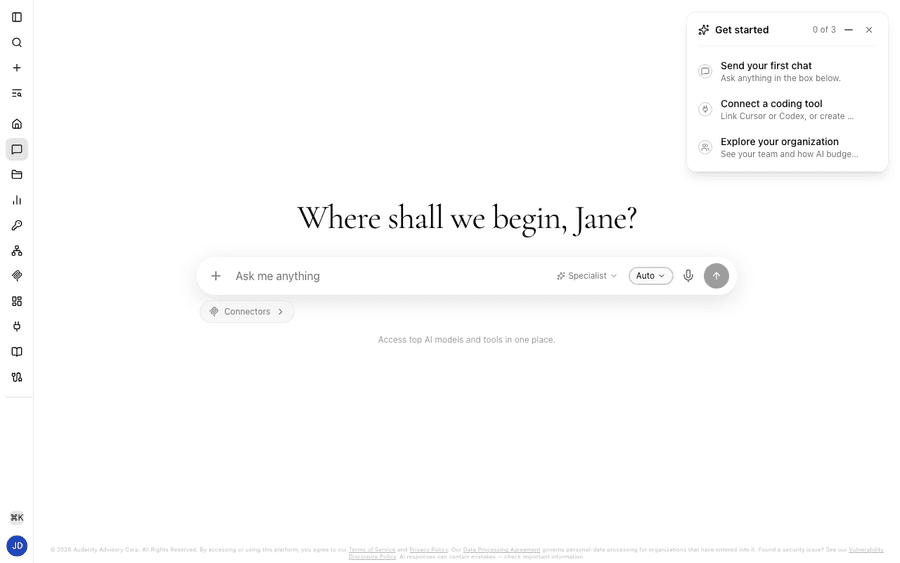
Sign in at [portal.aireserve.com](https://portal.aireserve.com) and open
**Chat** in the sidebar. Chat is off for every new organization until an admin
turns on **Web chat** under **Admin → your organization → Privacy**; once it is
on, everyone on the team can ask anything in the box. Leave the model on
**Auto** — the gateway picks the best model for each message, so nobody has to
know one model from another. The **Auto** button next to the send arrow opens
the picker: **Auto** ("Best model per task") sits at the top, followed by every
model your organization allows, grouped by provider, with search, favorites,
and recents. The **Specialist** button beside it is where specialists appear
once an admin enables them ([section 3](#3-turning-on-the-investment-advisor-specialist)).
 ## 2. Models from China-based providers are off by default
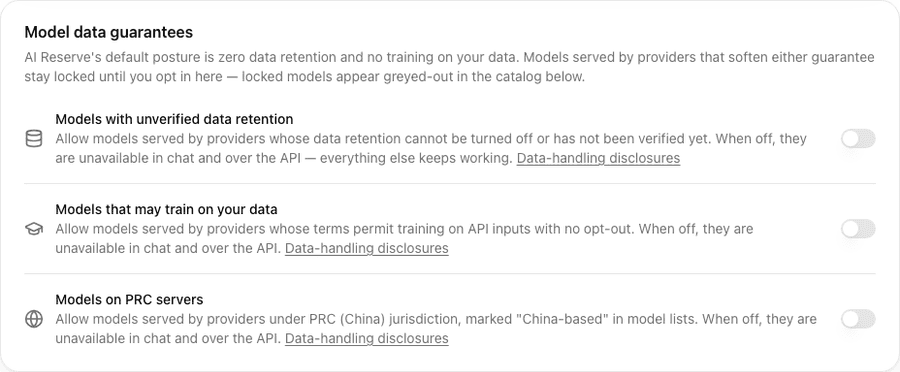
Some catalog models are served by providers operating under PRC (China)
jurisdiction. They are **off for every new organization** and stay off until an
enterprise admin turns them on: **Admin → your organization → Models → Model
data guarantees → Models on PRC servers**. The same card holds two sibling
switches — **Models with unverified data retention** and **Models that may train
on your data** — and all three start off; locked models appear greyed out in the
catalog below with the missing consent named. While a switch is off, those
models are excluded everywhere: the chat picker, Auto routing, and API traffic
on your keys. Every affected model carries a **China-based** label in model
lists.
The test is who operates the serving endpoint, not where the model was made —
Chinese-origin open weights served by US providers (for example
`deepseek-v4-pro` or `qwen-3.7-max`) are not China-hosted and are not covered
by the switch. To keep those off your team's menu too, block them one by one
from the model catalog on the same page; the **Router selections & blocklist**
panel shows what you have blocked. The full list of affected models is in
[China-hosted models](/models#china-hosted-models).
## 2. Models from China-based providers are off by default
Some catalog models are served by providers operating under PRC (China)
jurisdiction. They are **off for every new organization** and stay off until an
enterprise admin turns them on: **Admin → your organization → Models → Model
data guarantees → Models on PRC servers**. The same card holds two sibling
switches — **Models with unverified data retention** and **Models that may train
on your data** — and all three start off; locked models appear greyed out in the
catalog below with the missing consent named. While a switch is off, those
models are excluded everywhere: the chat picker, Auto routing, and API traffic
on your keys. Every affected model carries a **China-based** label in model
lists.
The test is who operates the serving endpoint, not where the model was made —
Chinese-origin open weights served by US providers (for example
`deepseek-v4-pro` or `qwen-3.7-max`) are not China-hosted and are not covered
by the switch. To keep those off your team's menu too, block them one by one
from the model catalog on the same page; the **Router selections & blocklist**
panel shows what you have blocked. The full list of affected models is in
[China-hosted models](/models#china-hosted-models).
 ## 3. Turning on the Investment Advisor specialist
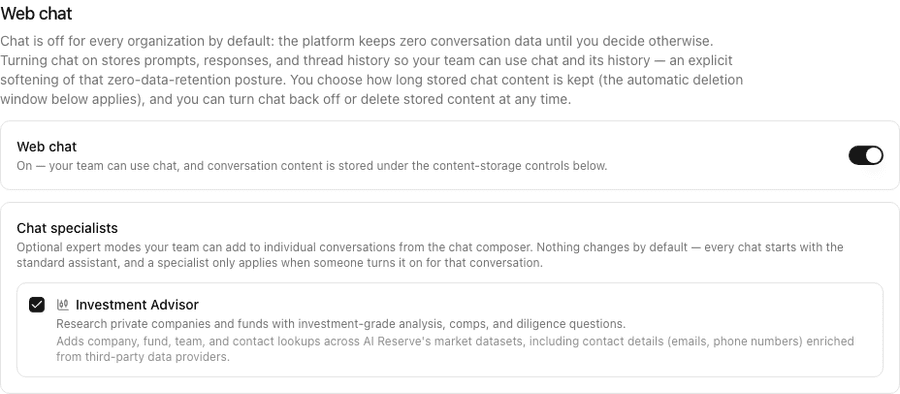
Specialists are optional expert modes a user can attach to a single
conversation; every chat starts with the standard assistant. They are off until
an admin enables them: open **Admin → your organization → Privacy**, and in the
**Web chat** section check **Investment Advisor** on the **Chat specialists**
card. It adds investment-grade research on private companies and funds —
company, fund, contact, and team lookups across AI Reserve's market datasets,
comparable analysis, and diligence questions — for the conversations where
someone picks it; every other chat is unchanged. Unchecking takes effect within
about a minute: conversations that had it attached fall back to the standard
assistant on their next message, and no history is lost. What the lookups
reach, and the per-conversation caps, are in
[Chat specialists](/capabilities/chat-specialists).
## 3. Turning on the Investment Advisor specialist
Specialists are optional expert modes a user can attach to a single
conversation; every chat starts with the standard assistant. They are off until
an admin enables them: open **Admin → your organization → Privacy**, and in the
**Web chat** section check **Investment Advisor** on the **Chat specialists**
card. It adds investment-grade research on private companies and funds —
company, fund, contact, and team lookups across AI Reserve's market datasets,
comparable analysis, and diligence questions — for the conversations where
someone picks it; every other chat is unchanged. Unchecking takes effect within
about a minute: conversations that had it attached fall back to the standard
assistant on their next message, and no history is lost. What the lookups
reach, and the per-conversation caps, are in
[Chat specialists](/capabilities/chat-specialists).
 ## 4. Create an API key
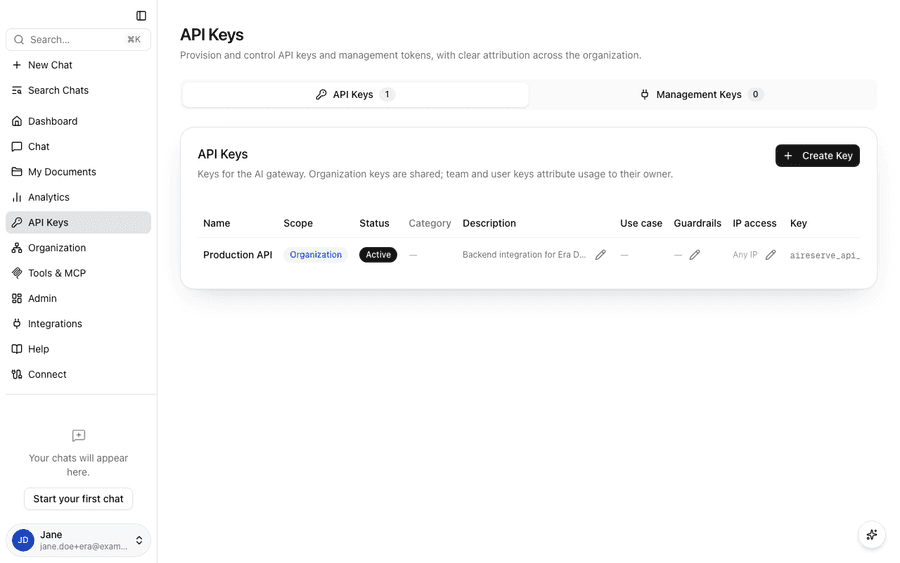
Open **API Keys** in the sidebar and click **Create Key**. The key is shown
once — copy it straight into your secret manager or an environment variable,
because the platform keeps only a hashed fingerprint. Keys look like
`aireserve_api_…` and are sent as the bearer token against the base URL
`https://api.aireserve.com/v1`. Revoke any key from the same page at any time —
access stops immediately — and see each key's usage in **Analytics**, filtered
by API key. How the SDKs pick the key up is in
[Get an API key](/getting-started/get-an-api-key).
## 4. Create an API key
Open **API Keys** in the sidebar and click **Create Key**. The key is shown
once — copy it straight into your secret manager or an environment variable,
because the platform keeps only a hashed fingerprint. Keys look like
`aireserve_api_…` and are sent as the bearer token against the base URL
`https://api.aireserve.com/v1`. Revoke any key from the same page at any time —
access stops immediately — and see each key's usage in **Analytics**, filtered
by API key. How the SDKs pick the key up is in
[Get an API key](/getting-started/get-an-api-key).
 ## 5. Connect a coding tool
Any tool that speaks the OpenAI or Anthropic API can run on your key: change
the base URL, paste the key, keep everything else. [Connect your
tool](/connect) has a page per tool with the exact fields — start with
[GitHub Copilot](/connect/github-copilot) for VS Code and the Copilot CLI, or
[Cursor](/connect/cursor) for the Cursor IDE. Every request those tools make is
metered on the key you gave them, so it shows up in Analytics within seconds.
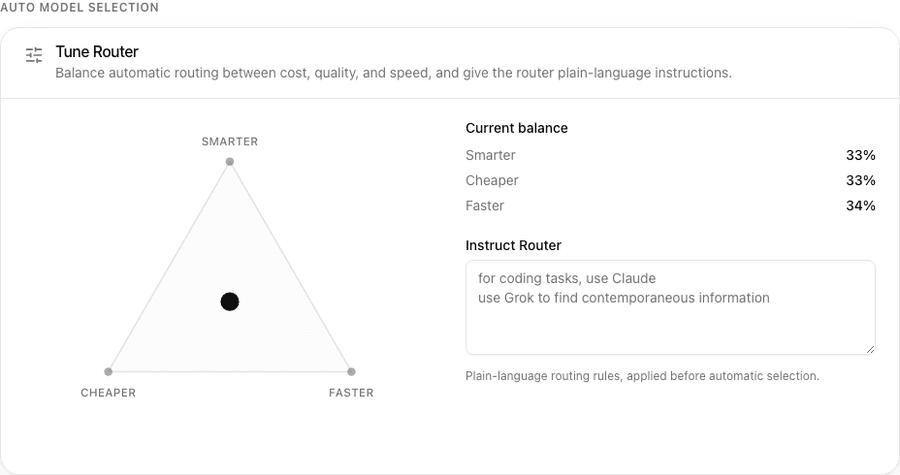
## 6. Routing for cost
**Auto** picks a model per request, so most of your team never chooses one.
Admins decide what Auto optimizes for: **Admin → your organization → Routing →
Tune Router** shows a triangle with **Cheaper**, **Smarter**, and **Faster** at
the corners — drag the dot toward the corner you care about and the current
balance updates beside it, and the **Instruct Router** box takes plain-language
rules such as "for coding tasks, use Claude". Developers calling the API get
the same lever per request: append `:floor` to a model ID for the cheapest
provider currently serving those weights, or `:nitro` for the fastest.
```bash theme={"dark"}
curl https://api.aireserve.com/v1/chat/completions \
-H "Authorization: Bearer $AIRESERVE_API_KEY" \
-H "Content-Type: application/json" \
-d '{
"model": "deepseek-v4-flash:floor",
"messages": [{"role": "user", "content": "Hello"}]
}'
```
Every response carries an `x-aireserve-served-model` header naming the model
and provider that actually answered, so a routed request is never a mystery.
Details in [Provider routing variants](/models#provider-routing-variants).
## 5. Connect a coding tool
Any tool that speaks the OpenAI or Anthropic API can run on your key: change
the base URL, paste the key, keep everything else. [Connect your
tool](/connect) has a page per tool with the exact fields — start with
[GitHub Copilot](/connect/github-copilot) for VS Code and the Copilot CLI, or
[Cursor](/connect/cursor) for the Cursor IDE. Every request those tools make is
metered on the key you gave them, so it shows up in Analytics within seconds.
## 6. Routing for cost
**Auto** picks a model per request, so most of your team never chooses one.
Admins decide what Auto optimizes for: **Admin → your organization → Routing →
Tune Router** shows a triangle with **Cheaper**, **Smarter**, and **Faster** at
the corners — drag the dot toward the corner you care about and the current
balance updates beside it, and the **Instruct Router** box takes plain-language
rules such as "for coding tasks, use Claude". Developers calling the API get
the same lever per request: append `:floor` to a model ID for the cheapest
provider currently serving those weights, or `:nitro` for the fastest.
```bash theme={"dark"}
curl https://api.aireserve.com/v1/chat/completions \
-H "Authorization: Bearer $AIRESERVE_API_KEY" \
-H "Content-Type: application/json" \
-d '{
"model": "deepseek-v4-flash:floor",
"messages": [{"role": "user", "content": "Hello"}]
}'
```
Every response carries an `x-aireserve-served-model` header naming the model
and provider that actually answered, so a routed request is never a mystery.
Details in [Provider routing variants](/models#provider-routing-variants).
 ## 7. Seeing spend
**Analytics** in the sidebar is where spend shows up. The top card shows
spend this period, requests, tokens, active API keys, and models used;
**Usage by Model** lists tokens, requests, **Cache Hits**, **Speed** (typical
and slowest response times), and share of spend per model; the member and
API-key filters break the same numbers down by person, team, or key; and
**Admin → your organization → Analytics** stacks spend by business function per
team. Savings show up in the same tables: a balance dragged toward Cheaper or
a `:floor` request shifts share of spend toward lower-cost models, cache hits
from providers that support prompt caching are passed through to you and appear
in the **Cache Hits** column, and because every provider bills to one wallet,
the whole picture is on one page.
## 8. Privacy in plain terms
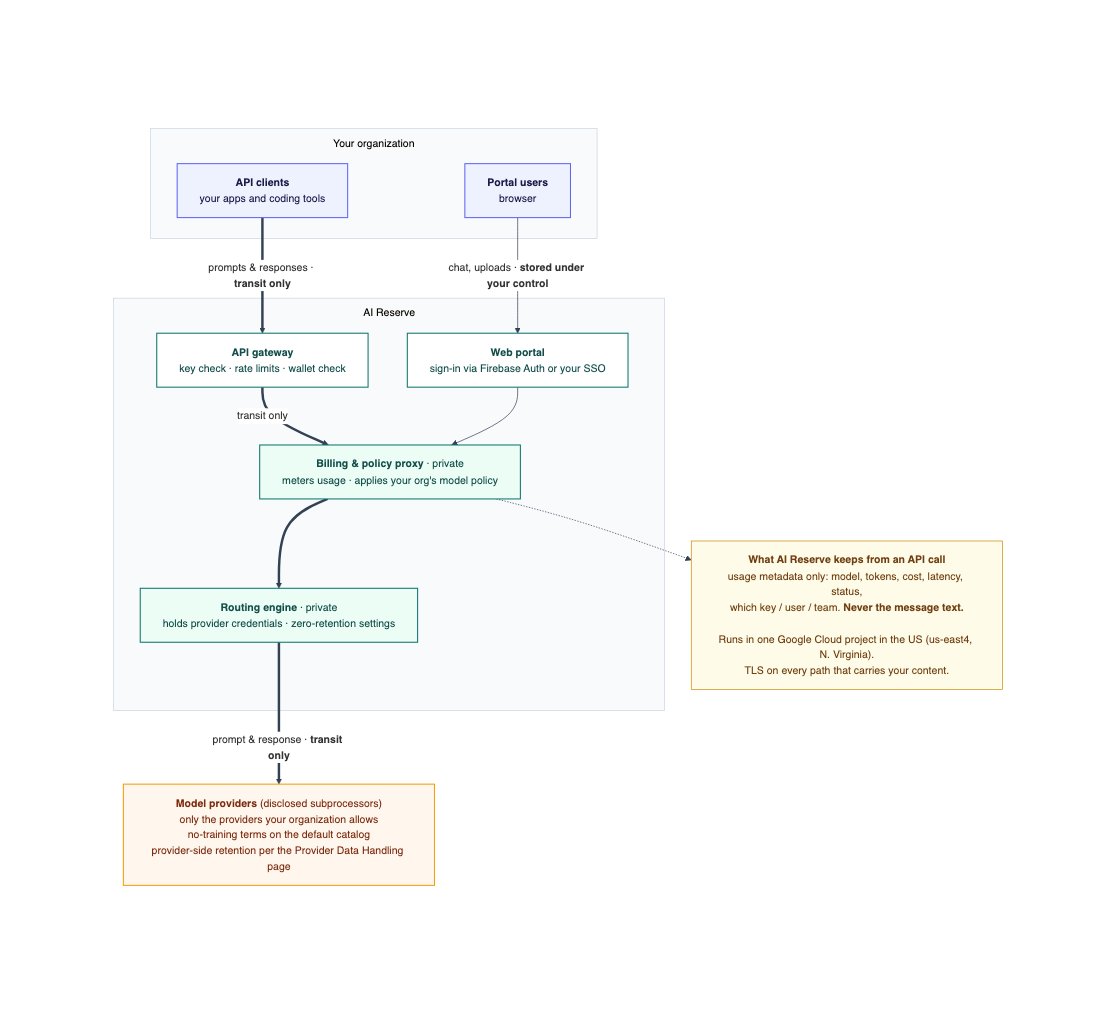
* **API traffic is never stored.** Prompts and responses sent with your API
keys pass through the gateway in memory only; the platform keeps usage
metadata (model, tokens, cost, timestamps) for billing and nothing else.
There is no setting that changes this.
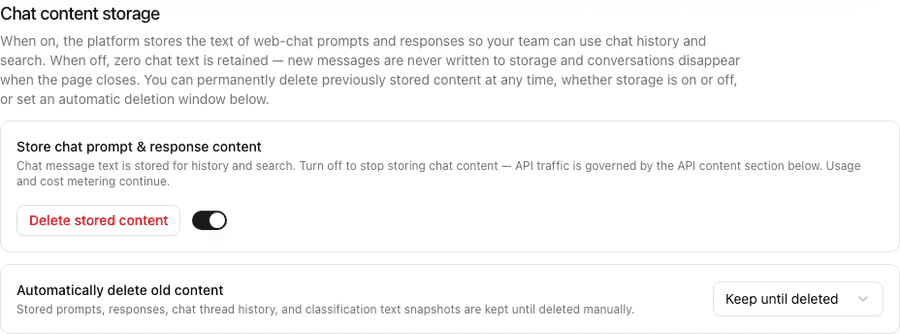
* **Web chat is stored only if you want it.** Under **Admin → your organization
→ Privacy → Chat content storage**, switch **Store chat prompt & response
content** off and no chat text is written — conversations disappear when the
page closes. On the same card, **Automatically delete old content** sets a
retention window (30 days to a year, or keep until deleted), and **Delete
stored content** permanently removes everything stored so far, whether
storage is on or off. Users can also delete their own chats and documents
from their profile (**Delete my data**), or delete their account entirely.
* **No training on your data.** AI Reserve does not use identifiable customer
data to train AI models, and every provider in the default catalog serves
under no-training terms; providers whose terms allow training sit behind the
consent switches in [section 2](#2-models-from-china-based-providers-are-off-by-default)
and stay locked until an admin opts in.
* **Where it runs.** One Google Cloud project in the United States, encrypted in
transit and at rest, with each organization's data logically separated and
access restricted by role.
* **Certifications, honestly.** Our own SOC 2 Type II examination is in progress
and no report has been issued yet — we do not claim our own certification.
The Google Cloud infrastructure the platform runs on carries Google's SOC 2
Type II and ISO 27001 certifications (Google's, not ours).
## 7. Seeing spend
**Analytics** in the sidebar is where spend shows up. The top card shows
spend this period, requests, tokens, active API keys, and models used;
**Usage by Model** lists tokens, requests, **Cache Hits**, **Speed** (typical
and slowest response times), and share of spend per model; the member and
API-key filters break the same numbers down by person, team, or key; and
**Admin → your organization → Analytics** stacks spend by business function per
team. Savings show up in the same tables: a balance dragged toward Cheaper or
a `:floor` request shifts share of spend toward lower-cost models, cache hits
from providers that support prompt caching are passed through to you and appear
in the **Cache Hits** column, and because every provider bills to one wallet,
the whole picture is on one page.
## 8. Privacy in plain terms
* **API traffic is never stored.** Prompts and responses sent with your API
keys pass through the gateway in memory only; the platform keeps usage
metadata (model, tokens, cost, timestamps) for billing and nothing else.
There is no setting that changes this.
* **Web chat is stored only if you want it.** Under **Admin → your organization
→ Privacy → Chat content storage**, switch **Store chat prompt & response
content** off and no chat text is written — conversations disappear when the
page closes. On the same card, **Automatically delete old content** sets a
retention window (30 days to a year, or keep until deleted), and **Delete
stored content** permanently removes everything stored so far, whether
storage is on or off. Users can also delete their own chats and documents
from their profile (**Delete my data**), or delete their account entirely.
* **No training on your data.** AI Reserve does not use identifiable customer
data to train AI models, and every provider in the default catalog serves
under no-training terms; providers whose terms allow training sit behind the
consent switches in [section 2](#2-models-from-china-based-providers-are-off-by-default)
and stay locked until an admin opts in.
* **Where it runs.** One Google Cloud project in the United States, encrypted in
transit and at rest, with each organization's data logically separated and
access restricted by role.
* **Certifications, honestly.** Our own SOC 2 Type II examination is in progress
and no report has been issued yet — we do not claim our own certification.
The Google Cloud infrastructure the platform runs on carries Google's SOC 2
Type II and ISO 27001 certifications (Google's, not ours).
 The authoritative documents, kept current in one place: the
[Trust Center](https://trust.aireserve.com), the
[Data Privacy & Security Overview](https://privacy.aireserve.com), the
per-provider [Provider Data Handling](https://privacy.aireserve.com/data-handling)
table, and the [Data Processing Agreement](https://aireserve.com/legal/dpa).
The authoritative documents, kept current in one place: the
[Trust Center](https://trust.aireserve.com), the
[Data Privacy & Security Overview](https://privacy.aireserve.com), the
per-provider [Provider Data Handling](https://privacy.aireserve.com/data-handling)
table, and the [Data Processing Agreement](https://aireserve.com/legal/dpa).