

1. Chat
Sign in at portal.aireserve.com and open Chat in the sidebar. Chat is off for every new organization until an admin turns on Web chat under Admin → your organization → Privacy; once it is on, everyone on the team can ask anything in the box. Leave the model on Auto — the gateway picks the best model for each message, so nobody has to know one model from another. The Auto button next to the send arrow opens the picker: Auto (“Best model per task”) sits at the top, followed by every model your organization allows, grouped by provider, with search, favorites, and recents. The Specialist button beside it is where specialists appear once an admin enables them (section 3).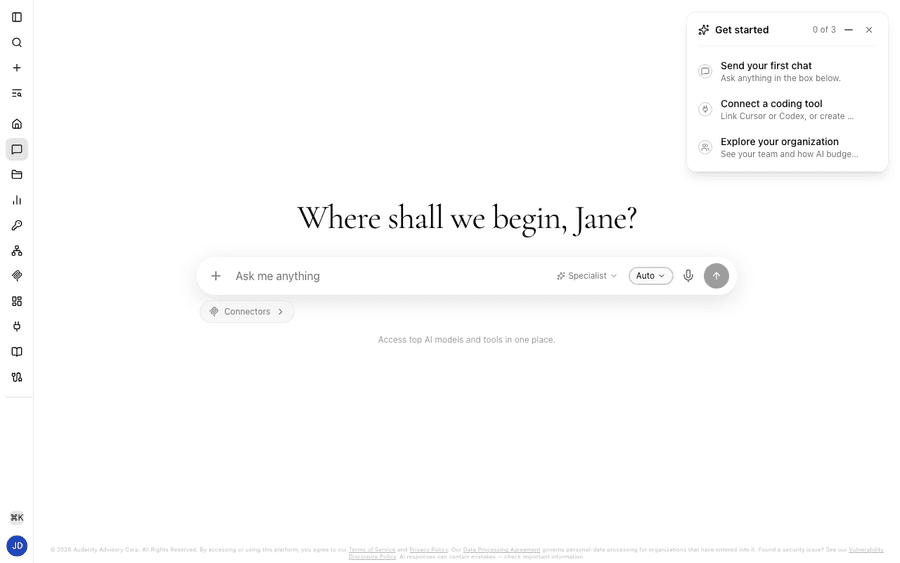
2. Models from China-based providers are off by default
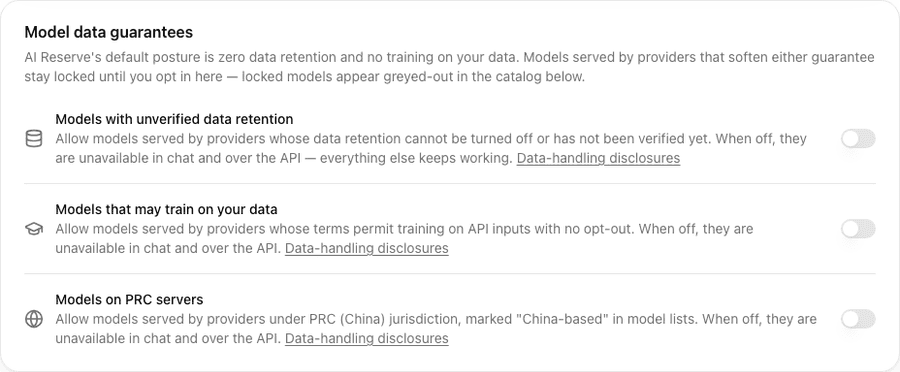
Some catalog models are served by providers operating under PRC (China) jurisdiction. They are off for every new organization and stay off until an enterprise admin turns them on: Admin → your organization → Models → Model data guarantees → Models on PRC servers. The same card holds two sibling switches — Models with unverified data retention and Models that may train on your data — and all three start off; locked models appear greyed out in the catalog below with the missing consent named. While a switch is off, those models are excluded everywhere: the chat picker, Auto routing, and API traffic on your keys. Every affected model carries a China-based label in model lists. The test is who operates the serving endpoint, not where the model was made — Chinese-origin open weights served by US providers (for exampledeepseek-v4-pro or qwen-3.7-max) are not China-hosted and are not covered
by the switch. To keep those off your team’s menu too, block them one by one
from the model catalog on the same page; the Router selections & blocklist
panel shows what you have blocked. The full list of affected models is in
China-hosted models.
To rule out a whole company instead of chasing its releases one by one, use
Block a maker on the Model defaults card of the same page. Pick a maker
(DeepSeek, Z.ai, Moonshot, Alibaba, …) and every model they make — the ones in
the catalog today and any added later — is treated exactly like a model you
blocked by hand: greyed out in the chat picker, skipped by Auto routing, and
left out of the model lists your MCP clients and Office add-ins see. Everything
from other makers stays allowed, including new models. If your organization’s
default model comes from a maker you block, new chats start on Auto routing
until you pick another default.
3. Turning on the Investment Advisor specialist
Specialists are optional expert modes a user can attach to a single conversation; every chat starts with the standard assistant. They are off until an admin enables them: open Admin → your organization → Privacy, and in the Web chat section check Investment Advisor on the Chat specialists card. It adds investment-grade research on private companies and funds — company, fund, contact, and team lookups across AI Reserve’s market datasets, comparable analysis, and diligence questions — for the conversations where someone picks it; every other chat is unchanged. Unchecking takes effect within about a minute: conversations that had it attached fall back to the standard assistant on their next message, and no history is lost. What the lookups reach, and the per-conversation caps, are in Chat specialists.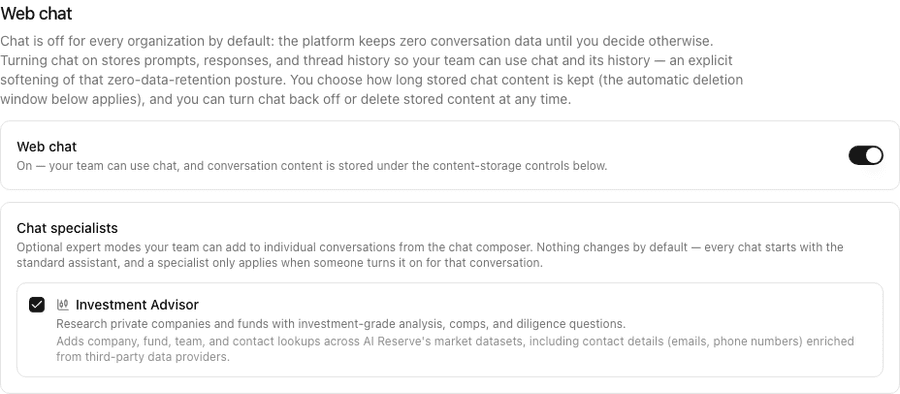
4. Create an API key
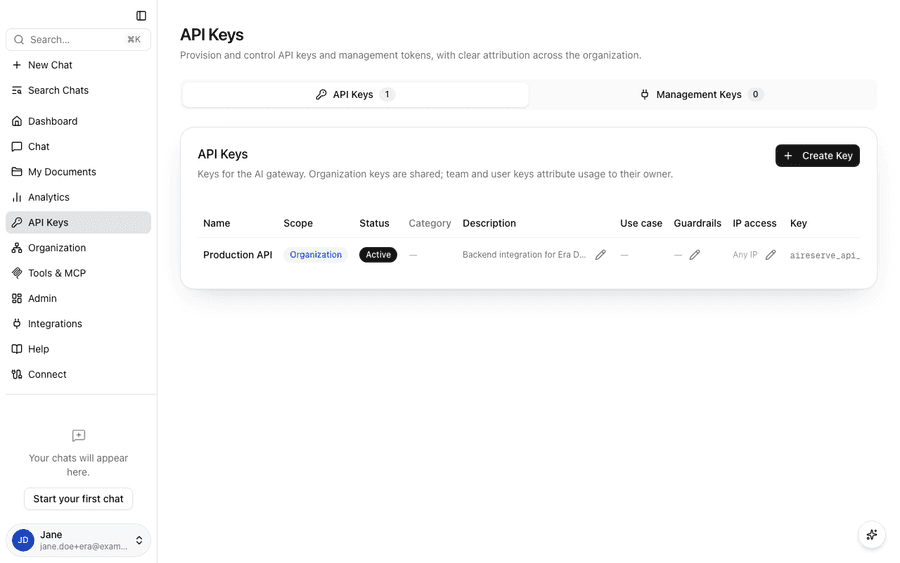
Open API Keys in the sidebar and click Create Key. The key is shown once — copy it straight into your secret manager or an environment variable, because the platform keeps only a hashed fingerprint. Keys look likeaireserve_api_… and are sent as the bearer token against the base URL
https://api.aireserve.com/v1. Revoke any key from the same page at any time —
access stops immediately — and see each key’s usage in Analytics, filtered
by API key. How the SDKs pick the key up is in
Get an API key.
5. Connect a coding tool
Any tool that speaks the OpenAI or Anthropic API can run on your key: change the base URL, paste the key, keep everything else. Connect your tool has a page per tool with the exact fields — start with GitHub Copilot for VS Code and the Copilot CLI, or Zed for the Zed editor. Every request those tools make is metered on the key you gave them, so it shows up in Analytics within seconds.6. Routing for cost
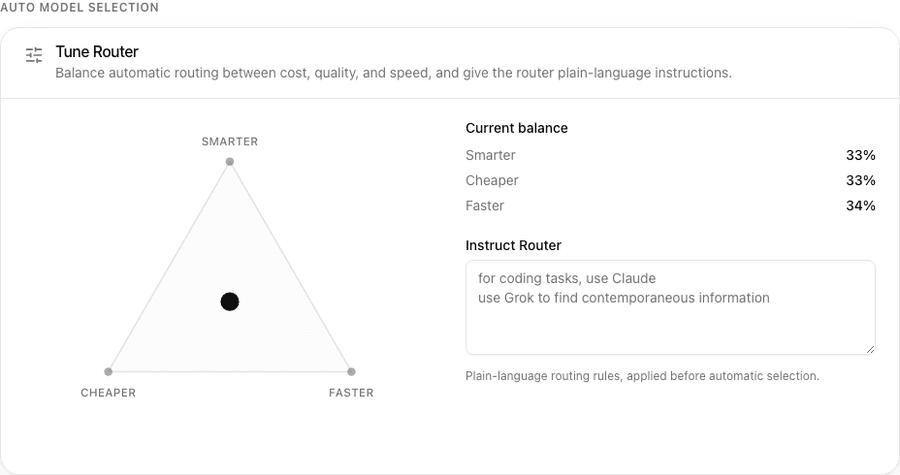
Auto picks a model per request, so most of your team never chooses one. Admins decide what Auto optimizes for: Admin → your organization → Routing → Tune Router shows a triangle with Cheaper, Smarter, and Faster at the corners — drag the dot toward the corner you care about and the current balance updates beside it, and the Instruct Router box takes plain-language rules such as “for coding tasks, use Claude”. Developers calling the API get the same lever per request: append:floor to a model ID for the cheapest
provider currently serving those weights, or :nitro for the fastest.
:nitro / :floor routing variant, or a same-weights pool),
the response carries an x-aireserve-served-model header naming the model that
actually answered, and x-aireserve-served-provider when your organization has
pinned a model to a provider. No header means the request was served as
requested. Details in Provider routing variants.
7. Seeing spend
Analytics in the sidebar is where spend shows up. The top card shows spend this period, requests, tokens, active API keys, and models used; Usage by Model lists tokens, requests, Cache Hits, Speed (typical and slowest response times), and share of spend per model; the member and API-key filters break the same numbers down by person, team, or key; and Admin → your organization → Analytics stacks spend by business function per team. Savings show up in the same tables: a balance dragged toward Cheaper or a:floor request shifts share of spend toward lower-cost models, cache hits
from providers that support prompt caching are passed through to you and appear
in the Cache Hits column, and because every provider bills to one wallet,
the whole picture is on one page.
To cap what a person, a team, or the whole organization may spend, see
Budgets: a dollar amount on each, set from the same
Members page, and the gateway refuses the request that would cross it.
8. Privacy in plain terms
- API traffic is never stored. Prompts and responses sent with your API keys pass through the gateway in memory only; the platform keeps usage metadata (model, tokens, cost, timestamps) for billing and nothing else. There is no setting that changes this.
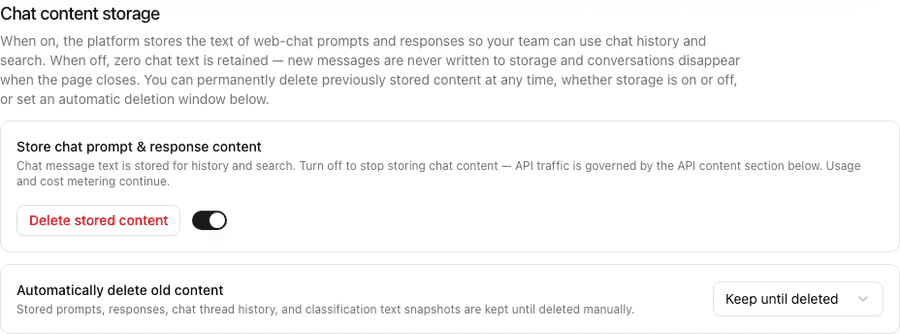
- Web chat is stored only if you want it. Under Admin → your organization → Privacy → Chat content storage, switch Store chat prompt & response content off and no chat text is written — conversations disappear when the page closes. On the same card, Automatically delete old content sets a retention window (30 days to a year, or keep until deleted), and Delete stored content permanently removes everything stored so far, whether storage is on or off. Users can also delete their own chats and documents from their profile (Delete my data), or delete their account entirely.
- No training on your data. AI Reserve does not use identifiable customer data to train AI models, and every provider in the default catalog serves under no-training terms; providers whose terms allow training sit behind the consent switches in section 2 and stay locked until an admin opts in.
- Where it runs. One Google Cloud project in the United States, encrypted in transit and at rest, with each organization’s data logically separated and access restricted by role.
- Certifications, honestly. Our own SOC 2 Type II examination is in progress and no report has been issued yet — we do not claim our own certification. The Google Cloud infrastructure the platform runs on carries Google’s SOC 2 Type II and ISO 27001 certifications (Google’s, not ours).
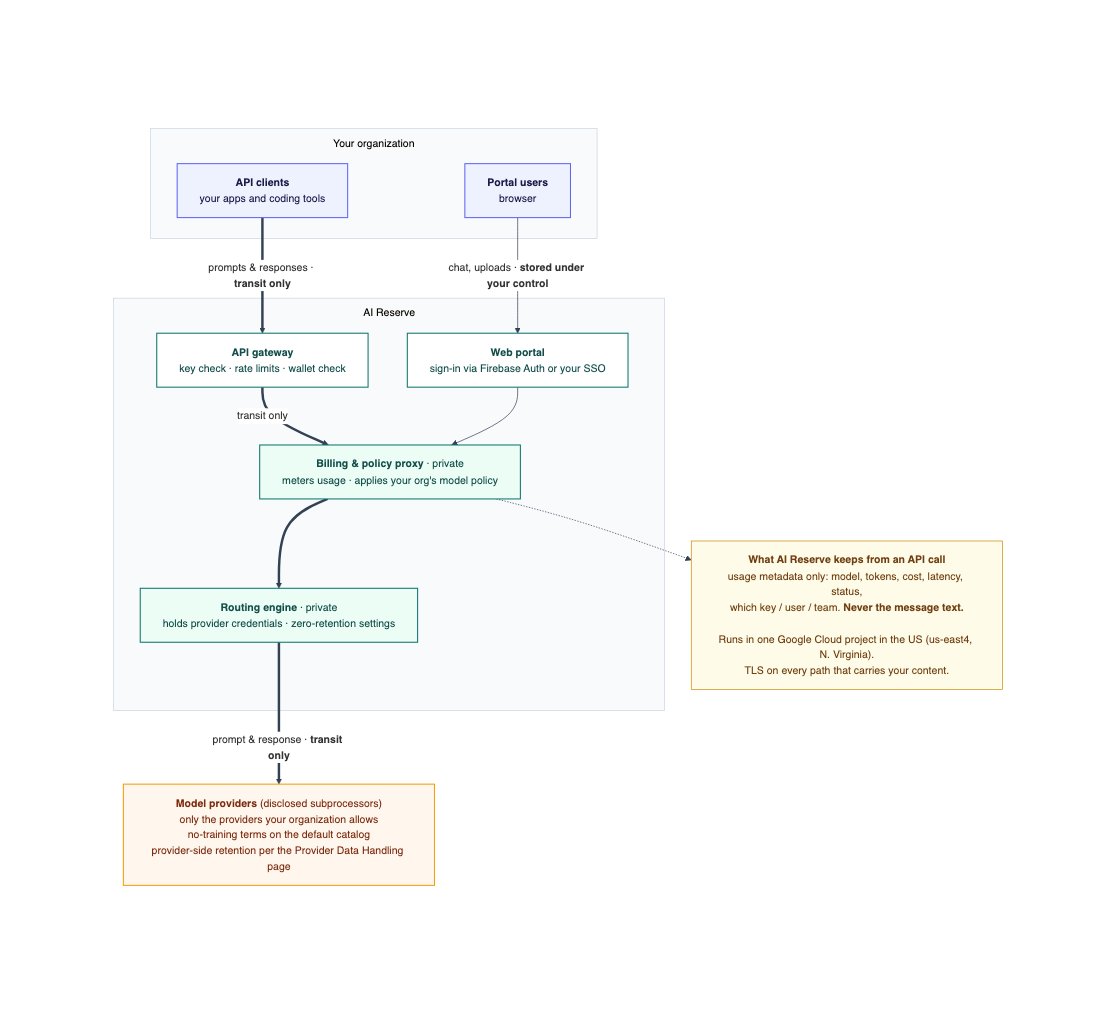
How a request moves through AI Reserve